
The Digital Déjà Vu No One Asked For
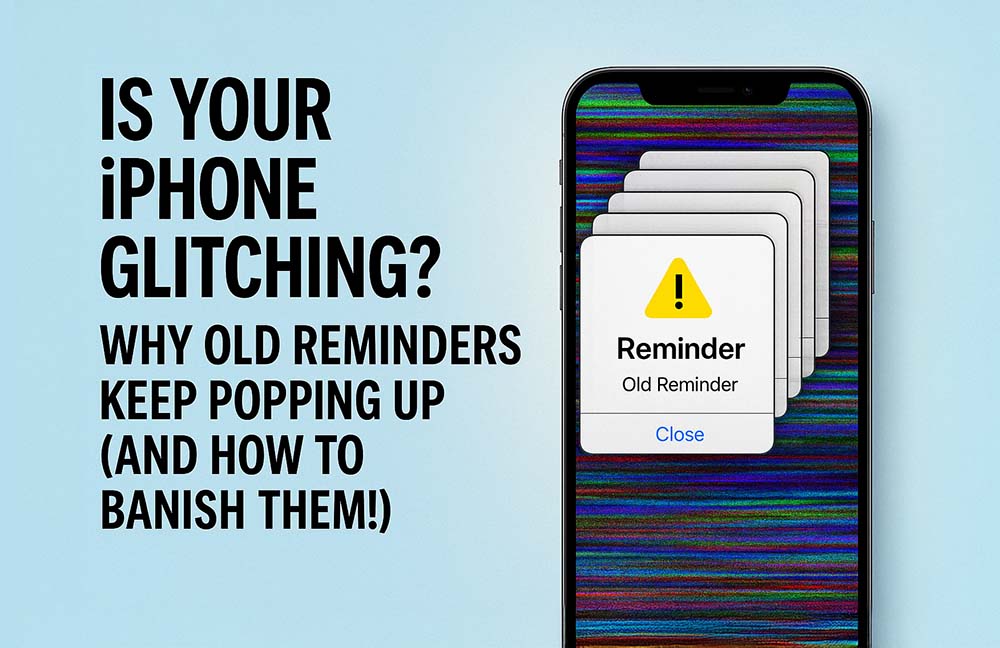
You deleted it. You completed it. You thought it was gone forever, banished to the digital graveyard of finished tasks. Then, BAM! An old reminder pops up on your iPhone, like a digital ghost from your past to-do list. It’s the unwelcome spectral guest at the feast of your daily grind. A persistent echo from a time you’d rather forget. What gives?! Is it a glitch in the matrix? A cosmic joke played by the universe? Or just…bad coding?
Let’s clear the air: while you might be blaming the upcoming iOS 26 (which, granted, sounds like something out of a sci-fi novel), this isn’t a new bug specific to that future OS. This “phantom reminder” problem is an age-old iOS mystery that’s plagued users across many versions. It’s a bit like inheriting a creaky, old house with a history of unexplained noises – you learn to live with it, but you’d sure like to know where they’re coming from.
We’re diving deep into why these digital specters fall back into your Reminders app. We’ll explore its long history of weirdness, listen to the chorus of user complaints echoing across the internet, and, most importantly, provide the ultimate guide to troubleshooting if you’re experiencing this maddening glitch.
The Reminders App’s Buggy History
This isn’t some newfangled horror exclusive to iOS 26. No, the Reminders app has been a bit… temperamental for a long time. Think of it as a character in a long-running play, prone to forgetting its lines or missing its cues. Issues have been reported as far back as iOS 8 and 9, persisting stubbornly through versions 13, 15, 16, 17, and even 18. It’s almost comforting in its consistency, if not entirely convenient.
Unmasking the Glitches: Why Old Reminders Reappear
So, what’s causing these digital apparitions? Let’s put on our detective hats and analyze the evidence.
- The Prime Suspect: iCloud Sync Issues: This is often the biggest culprit, the Moriarty of our little mystery. If iCloud isn’t syncing perfectly, an older version of your reminders list might get resurrected, or your hard-earned completions might simply vanish into the ether. It’s like the universe is subtly suggesting you didn’t actually do that thing.
- Underlying Software Glitches: Sometimes, it’s just a plain old bug in iOS or the Reminders app itself that causes completed tasks to resurface, defying logic and reason. These gremlins in the machine mock our attempts at order.
- Notification Handling Blues: Just swiping away a notification isn’t always enough, especially for those pesky recurring reminders. The system, in its infinite wisdom, might interpret this as ignoring the task, not completing it. It’s like saying “I’ll get to it later” to the universe, and the universe taking you literally… forever.
- Rogue Settings: Your Focus Modes, Scheduled Summary, or even Location Services for location-based reminders can inadvertently interfere. These features, designed to help, can sometimes become the source of the problem, a sort of digital friendly fire.
- The “Phantom” Reminders: And then there are those truly baffling instances, those digital irritations that pop up daily but don’t seem to exist anywhere in the app. These are the mysteries that keep tech support up at night.
What To Do If Any Of These Happen To You
Alright, enough theorizing. Let’s grab our digital sage and start banishing these pesky reminders.
The Basics (Always Start Here):
- Restart Your iPhone: The classic tech fix, often surprisingly effective. Sometimes all it takes is a little digital nap to reset the system.
- Update iOS: Ensure you’re on the latest version. Apple often releases bug fixes in point updates, like sending in the cavalry to squash those pesky bugs.
- Force Quit & Relaunch Reminders: Give the app a fresh start, a digital reboot if you will.
The iCloud Intervention:
- Toggle iCloud Reminders: Go to
Settings>[Your Name]>iCloud> Saved to iCloud –Show All> findReminders. Turn it OFF, it will ask if you’re sure you want to turn off reminders? As long as you’ve backed up recently, than you’ll be fine. (Click Delete from iPhone), wait about a minute. Then turn it back ON. This forces a fresh sync, like giving iCloud a digital jumpstart. It will take about a minute to repopulate your reminders again so don’t be nervous when you see 0 at first. - What I would do at this point: So… none of these measures have worked. Personally, I’d wait and see if it fixes itself in a day or two. As long as it’s not actually messing anything up, I’d wait it out and see if it fixes itself, Apple fixes it or they push an update out. I know that’s hard to do at times, but we all need to try and lower our OCD.
- Consider iCloud.com Restore (Use with Caution!): For extreme cases, you can restore from an earlier iCloud archive via iCloud.com, but this will revert all your calendar and reminder data to that previous state. Proceed with caution, this is a digital time machine, tread carefully. I don’t recommend this, but it’s a what Apple would suggest.
App Refresh Ritual:
- Delete and Reinstall the Reminders App: Don’t worry, your actual reminders live safely in iCloud, so they’ll resync like magic. This often clears app-specific glitches, giving the app a fresh start.
Deep Dive into Settings:
- Notifications Check: Dive into
Settings>Notifications>Reminders.- Ensure
Allow Notificationsis ON. If not, you’re essentially living in a silent, reminder-free void. - Enable
Time Sensitive Notifications. These ensure you don’t miss those crucial reminders. - Verify Lock Screen, Notification Center, and Banners are all enabled. The trifecta of reminder visibility.
- Set a loud, distinct alert tone! Choose something that will cut through the digital noise.
- Ensure
- Focus Mode & Scheduled Summary: Make sure Reminders aren’t being silenced or grouped up by these features. They might be hiding in plain sight.
- Location Services: For “remind me when I get home” reminders, ensure Reminders has
While Using the Applocation access. Otherwise, your phone won’t know when you’ve arrived, and the reminder will remain dormant.
The “Mark as Completed” Mantra:
- Always open the app and explicitly mark reminders as complete, rather than just swiping away notifications. For recurring ones, make sure you’re completing the current instance.
- Some users swear by marking a reminder as complete twice from the Lock Screen. A digital double-tap to ensure its demise.
The Nuclear Option (Last Resort):
- Reset All Settings:
Settings>General>Transfer or Reset iPhone>Reset>Reset All Settings. This resets system settings to default but keeps your data intact. You’ll need to reconfigure things like Wi-Fi passwords, wallpaper, etc. A drastic measure, but sometimes necessary. I’m not a fan of this one.
Regular Housekeeping:
- Delete old, completed reminders to keep your app lean and mean. A digital decluttering to prevent future Déjà Vu’s.
The Community Chorus: User Frustrations & Apple’s Approach
The digital streets are filled with frustrated cries of “Why is this still happening?!” Users are understandably annoyed that such a fundamental app feature remains oddly glitchy (at times).
Conflicting advice and mixed results abound. Many users scour forums for solutions, trying everything from toggling settings to reinstalling, often with temporary or no success. It’s a bit like trying to find a cure for a common cold – everyone has their own remedy, but none are guaranteed to work. We also come to the generic troubleshooting steps, which is equivalent of telling someone with a broken leg to “walk it off.”
We live in a digitally trending world and things from all sides are going to have annoyances. We need to just remember that things will get fixed in time and to focus on something else while we wait.
The Future Forecast: What iOS 26 (and Beyond) Might Bring
While the “old reminders bug” isn’t new to iOS 26, we can expect some significant fixes and upgrades to the Reminders app as we move forward to iOS 26.1 and up. Here are some things to be excited about.
- Apple Intelligence Integration: This is the big one! Expect AI-powered suggestions for tasks, auto-categorization of lists, and smart follow-ups based on content in other apps like Mail. This could implicitly resolve some underlying data issues, as the AI might be able to intelligently identify and resolve syncing inconsistencies.
- Enhanced Functionality: Rumored features include quicker reminder controls (maybe via the Action Button?) and time zone support for more reliable alerts while traveling. A welcome addition for the jet-setting reminder enthusiast.
- Hope for Reliability: The ultimate goal is undoubtedly a smarter, more reliable Reminders experience. Will these updates finally banish the ghost of reminders past? We can only hope! It’s a digital exorcism we’re all waiting for.
Conclusion: Stay Vigilant, Stay Organized
Phantom reminders are a real, frustrating problem that many iPhone users have faced across iOS versions. While no magic bullet exists (yet), a combination of troubleshooting steps often helps to keep those digital glitches at bay.
Your action plan: Stay updated with the latest iOS releases, diligently manage your iCloud sync, and be religious about marking tasks complete within the app. With Apple Intelligence on the horizon for iOS 26, there’s a glimmer of hope that our digital to-do lists will finally be less scary and more helpful. Until then, keep those eyes peeled for unexpected pop-ups. The ghosts of reminders past may still be lurking in the digital shadows, waiting for their moment to reappear. – Interestingly, by the time I finished this article, the Reminders ‘passed completed’ glitch corrected itself. It seems that, in some cases, all that’s required is a little patience.
