
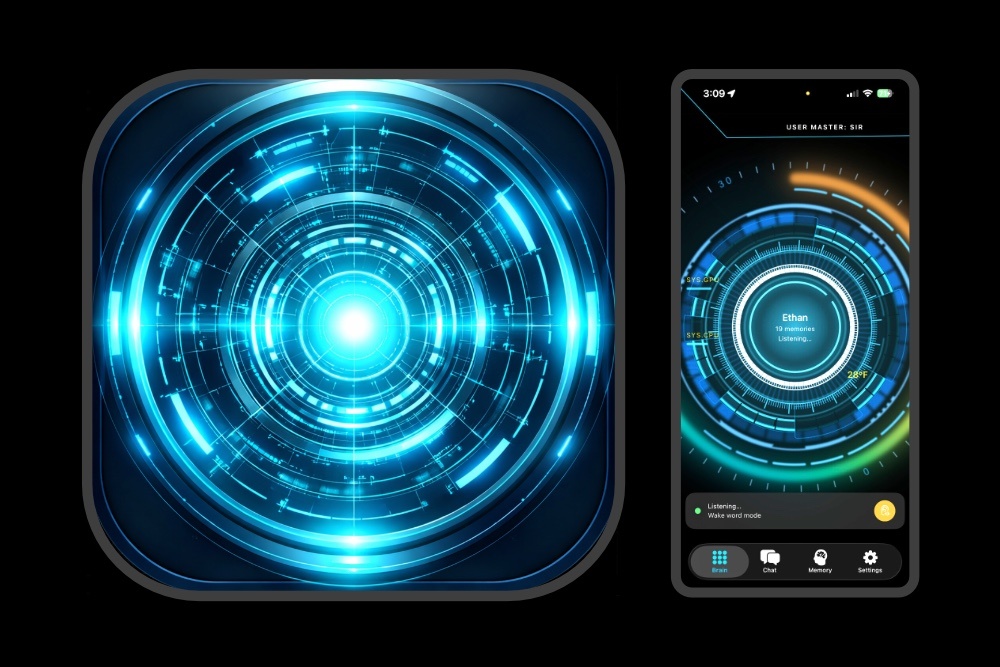
Welcome to Ethan AI Assistant.
E.T.H.A.N stands for “Even This Has a Name.” It’s simply the name of the app — the assistant itself can be named anything you like.
When you first start the app, you’ll choose a name for your assistant and also tell it what you’d like to be called. Both can be changed at any time from the Settings menu at the top of the app. This makes conversations feel more natural while keeping everything fully in your control.
Ethan is a voice-based assistant designed to run primarily on your device, focusing on simple interactions, intentional memory, and hands-free use. This page explains how the app works and how to get support if you ever need it.
How the App Works
- Voice-based interaction using speech recognition
- Core features work offline
- Internet access is used only for the optional weather feature
- The assistant remembers information only when you explicitly say “Remember…” first.
- Reminders are created using the built-in iOS Reminders app – say “Remind me…” first
- Tap the Center Brain to mute mic and speech
- No account or login is required
Using Different Voices
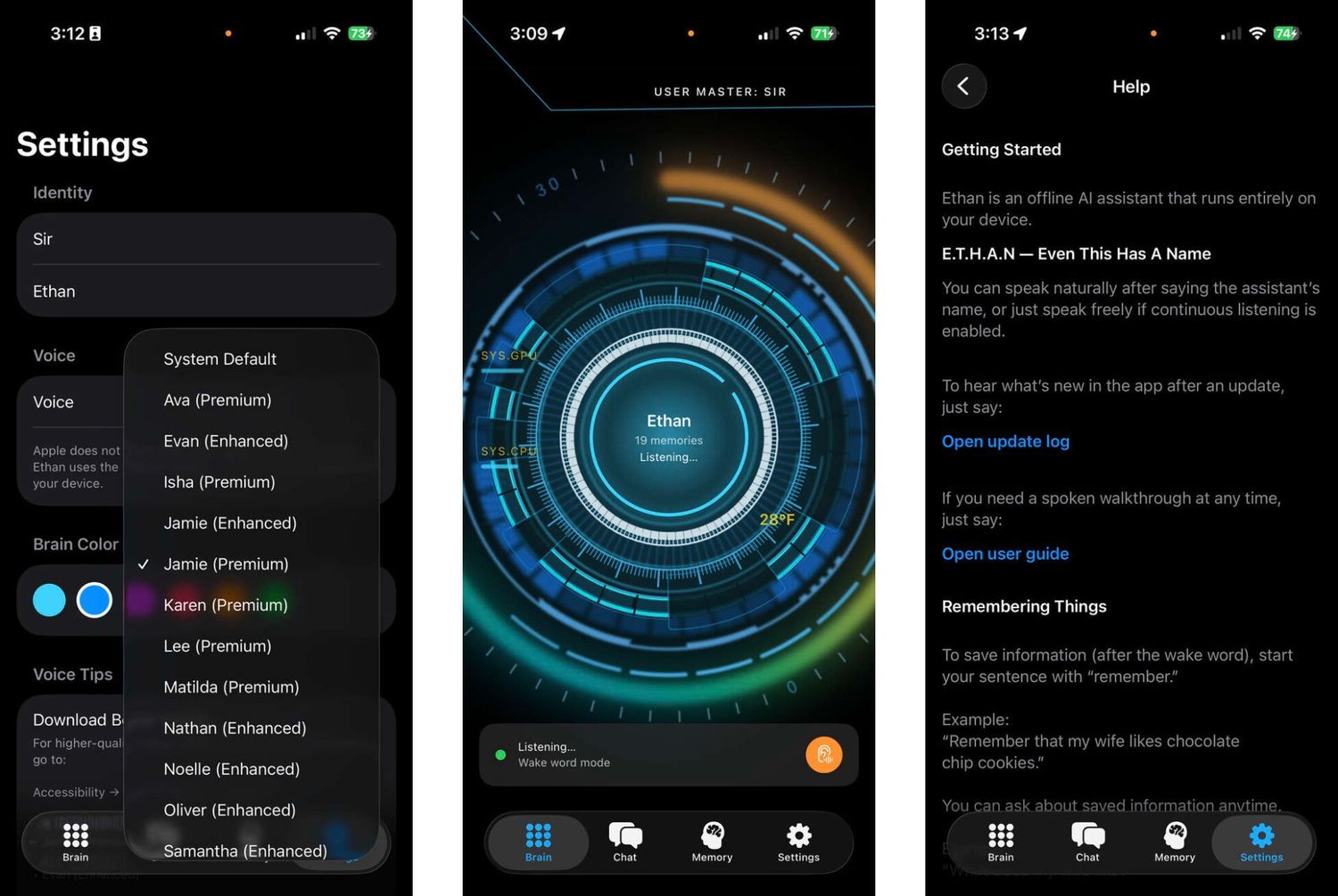
Ethan uses Apple’s built-in iOS text-to-speech voices.
Apple does not allow third-party apps to use Siri voices, so those voices won’t appear as options. Instead, the app works with Apple’s highest-quality system text-to-speech voices, including Enhanced and Premium voices.
Examples include voices like:
- Jamie (Enhanced or Premium)
- Ava (Premium)
- Isha (Premium)
- Evan (Enhanced)
These voices sound more natural but must be downloaded to your device first.
How to Download High-Quality Voices on iOS
- Open the Settings app on your iPhone or iPad
- Go to Accessibility
- Tap Read & Speak
- Tap Voices
- Choose a language
- Tap Voice
- Download any Enhanced or Premium voices you’d like
Some voices include Enhanced or Premium versions, which sound more natural but may take a moment to download.
Once a voice is downloaded, it will automatically appear in the Voices dropdown inside the Ethan app’s Settings.
A Quick Note
Voice availability depends on your iOS version, language, and which voices are installed on your device. Ethan uses Apple’s system voices and doesn’t add, modify, or replace them.
Memories
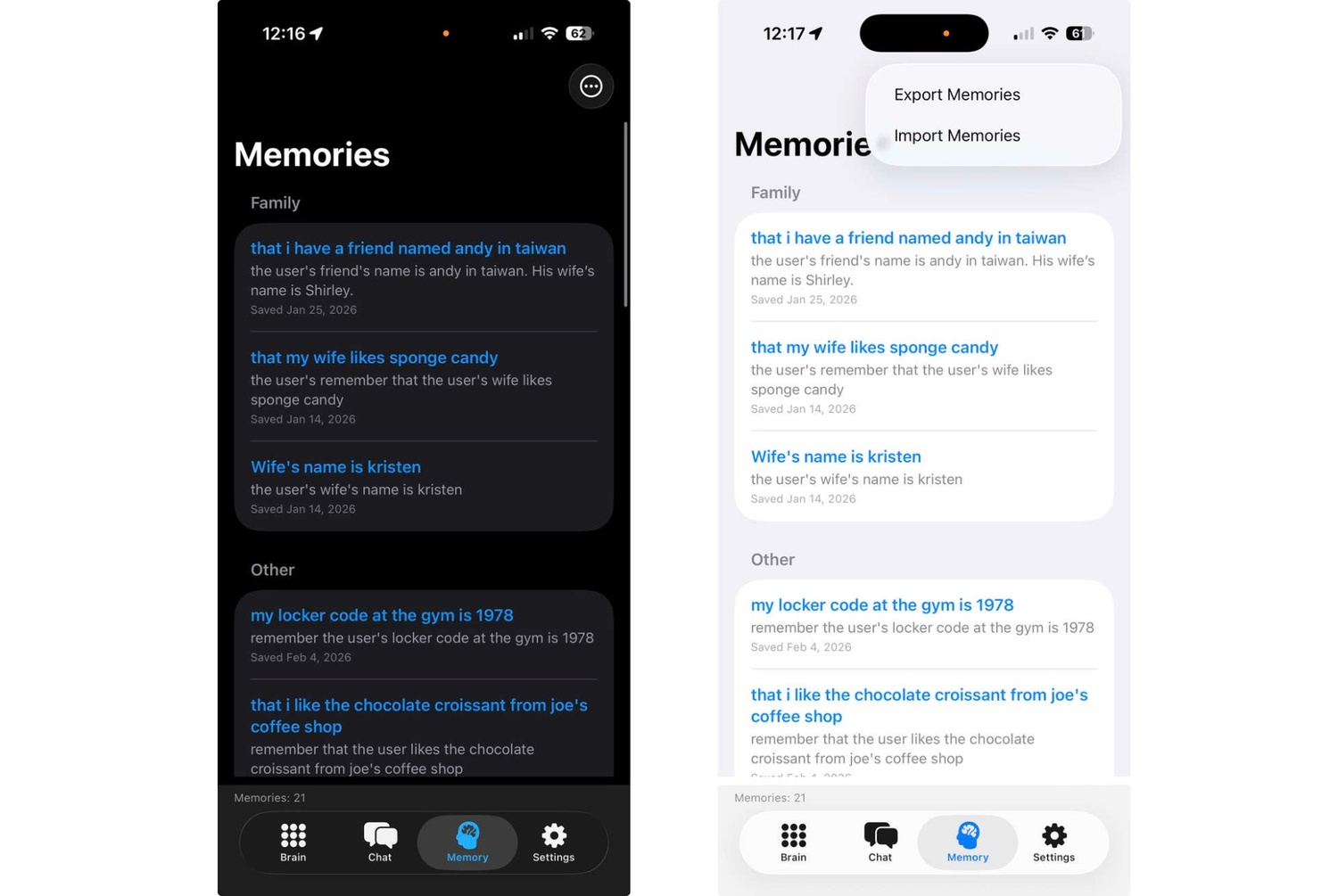
Memories are one of the most useful features in the app. It’s what will make the assistant feel more personal. If you want the assistant to remember something, just start your sentence with “Remember…”.
For example, you can say:
“Remember that we went to Copper Town Tavern today and I liked the prime rib.”
Later, if you ask something related—like what to eat or where to go—the assistant can use that saved memory to make a more personal suggestion, such as recommending Copper Town Tavern again or mentioning that you enjoyed the prime rib.
Each memory is also saved with a date recorded, so you can ask questions like:
“When did I go to Copper Town Tavern?”
or
“What did I get at Copper Town Tavern that I really liked?”
Exporting and Importing Memories (Backup)
You can back up your memories and move them to another device anytime:
- Open the Memories tab (bottom of the app)
- Tap the three dots (•••) in the top-right corner
- Tap Export Memories and save the file wherever you’d like
To restore memories on another device:
Select your saved file — your memories will be added automatically
Open the Memories tab
Tap three dots (•••)
Tap Import Memories
Step-by-Step Instructions
The assistant can also provide step-by-step guidance for many tasks.
For example, you can say:
“Give me a 4-day beginner workout routine.”
The assistant will respond with step-by-step instructions and then wait for you to move forward. To continue, just say the assistant’s name followed by:
“Next” or “Continue”
This works great for things like:
- Recipes
- Workout plans
- Tutorials and guides
- Learning new skills
Note: Exporting long lists isn’t included yet, so for now you’ll want to take a screenshot or write it down if you want to keep the full plan.
Permissions
The app may request the following permissions:
- Microphone — used for voice input
- Speech Recognition — used to convert spoken commands into text
- Location — used only for local weather
- Reminders — used to create reminders in the built-in iOS Reminders app
Helpful Guidance
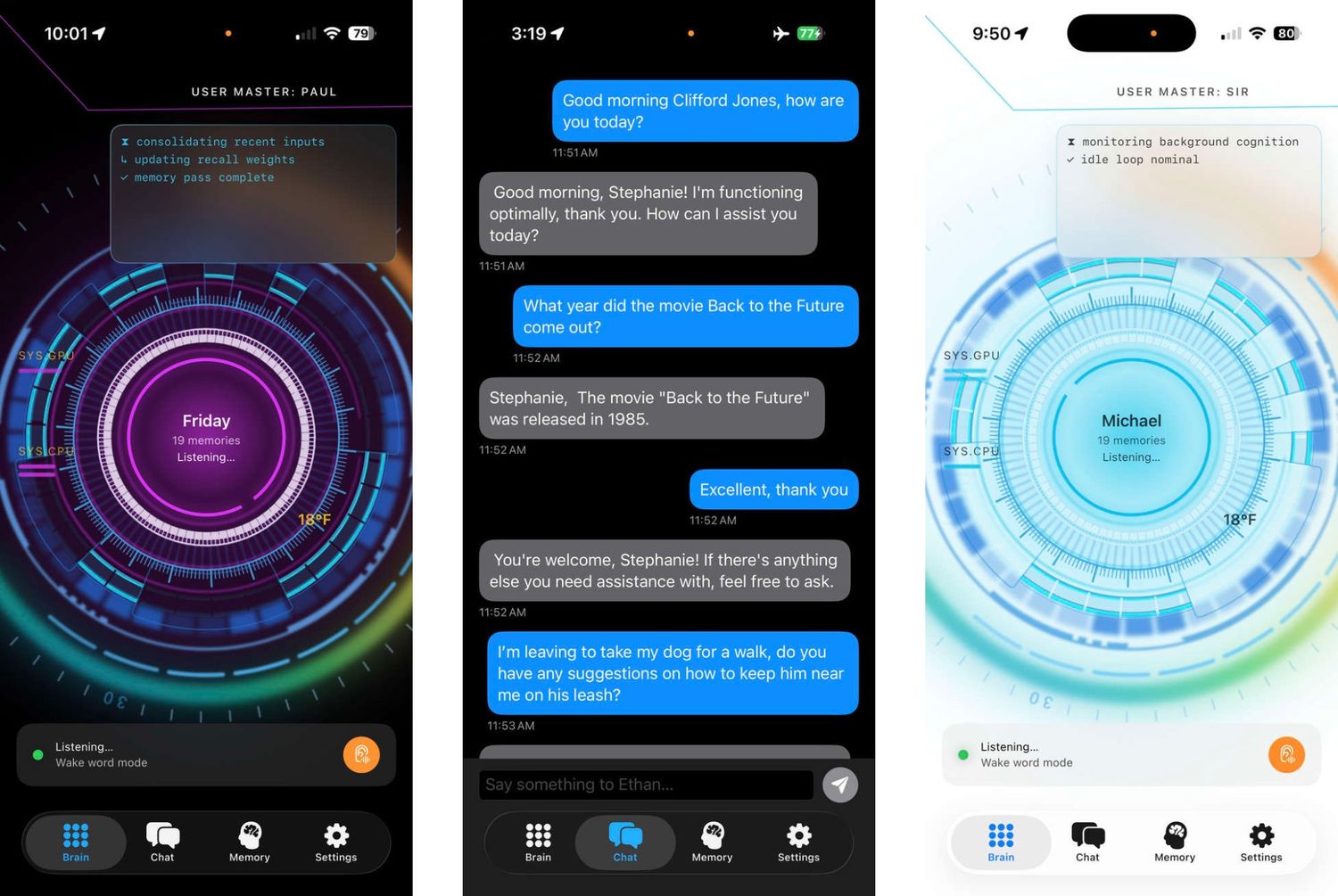
If the assistant ever says “I wasn’t able to process that question,” it usually just means it needs a moment.
Here are a few easy ways to get things back on track:
- Give it a moment, then try again – Sometimes it’s still finishing up the previous response or just loaded.
- Keep requests short and simple – Clear questions work best and get faster replies.
- Mute and unmute – Tap the center brain to mute, wait 2–3 seconds, then tap again to wake it back up.
- Say it a little differently – Rephrasing the question can help the assistant reset and move forward.
- Wait before switching views – If you switch tabs at the bottom while the assistant is still thinking, it may lose track of the question or double it. It’s best to wait until the assistant starts speaking before changing views.
Most of the time, one of these quick fixes does the trick and you’re right back in the conversation.
Contact Support
For questions or support requests, please contact:
Email: Click HERE
Please include your device model and iOS version when possible.
Privacy Policy
Ethan AI Assistant does not require an account or login. The app does not collect or transmit personal data. Core functionality runs on your device. Memory is stored only when you explicitly ask the assistant to remember something. Microphone and speech recognition permissions are used for voice interaction. Location access is used only for optional weather data. Reminders access is used to create reminders using the iOS Reminders app. The app does not track you or collect data for advertising or analytics.
